Monday, May 24, 2010

How to use the Microsoft Malicious Software Tool

Yes, you downloaded it and all that but now where is it and how do you use it?
Read on:
How to Run the Malicious Software Removal Tool Manually

Follow the steps below to open MSRT and change the default settings.

1) Click on Start, Run
2) Type MRT and Press Enter
3) You'll be presented with the following screen, click on the Next button

Malicious Software Removal Tool Startup Screen

4) Normally, the removal tool runs the Quick Scan, but for more thorough results, choose FULL SCAN and click Next

Malicious Software Removal Tool Scan Options

5) Now the Malicious Software Removal Tool will scan your entire hard drive for infections and problems.


MSRT Scan in Progress

6) Once the scan is completed, you should see the following screen if your computer is free of infection.
MSRT Results Page

Rogue Viruses pose as safe programs...beware

The latest down the net pike.....these programs pose as harmless and the links are appealing to get you to download and try them...DON"T DO IT!
Not unless you want us techs to fix your computer cuz its crashed!
One of them is "Antispyware 2010" another is "Personal Security"...plus bunches and bunches more.....
Once you get 'em they pretty much disable all the programs from starting so you can't do anything...arghh!


 FROM PC WORLD....READ ON.....

Because of Google's large market share in the Internet search engine business, hackers developed a vested interest in ensuring that their attacks are effective in poisoning Google results, according to software company Symantec.
"Google's breadth and speed of indexing also play a role," added Symantec, a company involved in providing security, storage and systems management solutions.
Symantec reported that search engine results poisoned with links to fake antivirus software have been a constant problem for Internet users. However, it is an effective way for cyber attackers to infect users' machines.
Based on Symantec's report on "Rogue Security Software" -- the culprits of these "toxic" search results are typically scam perpetrators who use a range of black hat search engine optimization (SEO) techniques to poison search engine results and increase the ranking of their scam websites on search engine indexes. A rogue security software program is a misleading application that pretends to be legitimate security software, but provides the user with little or no protection. In some cases, it actually facilitates the installation of malicious code that it claims to protect against.
Symantec has observed search results constantly and generated statistics on the top search trends every hour and determined how many were malicious (within the first 70 Google search results).
Among the key findings identified between March to April 2010, on Google search results include the following:
• On average at any given hour, 3 out of the top 10 search trends contained at least one malicious URL within the first 70 results;
• On average, 15 links out of the first 70 results were malicious for search terms that were found to be poisoned (had at least one malicious URL);
• On average on any given day, 7.3% of links are malicious in the top 70 results for top search terms (see Figure 1);
• The most poisoned search term resulted in 68% of links leading to malicious pages in the first 70 results;
• Almost all of the malicious URLs redirect to a fake antivirus page.
It is apparent that attackers continue to be effective at poisoning search results. They have an automated infrastructure that is able to automatically collect the latest, most popular search trends and poison the results, the company said.
Symantec advises netizens to be careful when clicking on search result links, especially when searching for hot search topics. The company also advised to follow its Twitter feed to find out the latest news on Internet threats.

Lookout Mobile Security-Great App for your phone

Got Mobile Phone?
Well, help protect it with Lookout Software: Here is the scoop from
their page:

Mobile devices are a valuable target. The mobile device has become the most personal computer. Mobile devices contain personal information, access sensitive networks, and are now utilized for financial transactions. Lookout keeps your device safe and secure.
As with PCs, mobile devices are subject to viruses, malware, and hackers. Mobile devices have quickly evolved from phones to fully functional mobile computers enabling web browsing, multimedia, advanced communication.
Downloading applications, accessing public Wi-Fi hotspots, and use of Bluetooth are all commonplace and targeted by attackers.


Download the App HERE
Stay safe in the Web World gang!

Saturday, May 22, 2010

Google Password Decryptor

GooglePasswordDecryptor is a tool to instantly recover Google account passwords stored by various Google applications as well as popular web browsers...
A handy tool to keep around in case you need it...and its portable...just download the zip file and unzip it onto a USB drive...(which is what I recommend for portable programs anyhow

Get it HERE

Best Free Screen Capture Program Out There

I recommend FastStone Screen Capture-portable version....just download the zip file....extract it and click on the little bright icon to
start the program...it works on Windows 7 too!  The snipping tool with Win 7 is goofy...you draw with your mouse around the screen....pretty lame if you ask me....this little nifty deal gives you the option to capture the whole screen or just crop what you want.....
get it HERE and go with it.....you will wish you had gotten it before now!

Friday, May 21, 2010

What is a Trojan? Here's the answer....

A Trojan, sometimes referred to as a Trojan horse, is non-self-replicating malware that appears to perform a desirable function for the user but instead facilitates unauthorized access to the user's computer system. The term is derived from the Trojan Horse story in Greek mythology.

Purpose and operation

Trojan horses are designed to allow a hacker remote access to a target computer system. Once a Trojan horse has been installed on a target computer system, it is possible for a hacker to access it remotely and perform various operations. The operations that a hacker can perform are limited by user privileges on the target computer system and the design of the Trojan horse.
Operations that could be performed by a hacker on a target computer system include:
Trojan horses require interaction with a hacker to fulfill their purpose, though the hacker need not be the individual responsible for distributing the Trojan horse. In fact, it is possible for hackers to scan computers on a network using a port scanner in the hope of finding one with a Trojan horse installed, which the hacker can then use to control the target computer.[1]
A trojan differs from a virus in that only a file specifically designed to carry it can do so. Installation and distribution
Trojan horses can be installed through the following methods:
  • Software downloads (e.g., a Trojan horse included as part of a software application downloaded from a file sharing network)
  • Websites containing executable content (e.g., a Trojan horse in the form of an ActiveX control)
  • Email attachments
  • Application exploits (e.g., flaws in a web browser, media player, messaging client, or other software that can be exploited to allow installation of a Trojan horse)
Also, there have been reports of compilers that are themselves Trojan horses.[citation needed] While compiling code to executable form, they include code that causes the output executable to become a Trojan horse.

Removal

Antivirus software is designed to detect and delete Trojan horses, as well as preventing them from ever being installed. Although it is possible to remove a Trojan horse manually, it requires a full understanding of how that particular Trojan horse operates. In addition, if a Trojan horse has possibly been used by a hacker to access a computer system, it will be difficult to know what damage has been done and what other problems have been introduced. In situations where the security of the computer system is critical, it is advisable to simply erase all data from the hard disk and reinstall the operating system and required software.

Current use

Due to the growing popularity of botnets among hackers, Trojan horses are becoming more common. According to a survey conducted by BitDefender from January to June 2009, "Trojan-type malware is on the rise, accounting for 83-percent of the global malware detected in the world".[2]

(Posted courtesy of Wikipedia)

Google to offer encrypted browsing....here's how...

People who want to shield their use of Google's Web search engine from network snoops now have the option of encrypting the session with SSL protection.
SSL (Secure Sockets Layer) technology is designed to prevent unauthorized parties from sniffing data traveling between a user's computer and a server.
In the case of Google search, SSL will protect the transmission of search queries entered by users and the search results returned by Google servers.
Google will begin rolling out the encrypted version of its Web search engine on Friday. It will be available by typing "https" instead of "http" in the URL address bar.
"We think users will appreciate this new option for searching. It's a helpful addition to users' online privacy and security, and we'll continue to add encryption support for more search offerings," wrote Evan Roseman, a Google software engineer, in an official blog post.
The SSL Web search will be in beta, or test, mode for now and the user experience will vary from the regular service in a few ways. For instance, it will likely be slower because a secure connection has to be established. Initially, the SSL option will be available only for Web search and will not cover Google's specialty engines like image and maps search.
Google offers SSL protection for other of its services, like Gmail and the hosted Docs office productivity suite.

Thursday, May 20, 2010

Create free cards or anything with this!

Do you want to make a card, recipe, flyer etc.
and don't have the software to do it?
Well then, here is the answer......HP Creative Studio....
Just click HERE  and get creative!

Tuesday, May 18, 2010

What is Greasemonkey again? Here's the answer....

To put it simply....it blocks (or allows) certain parts of websites....and that's basically all you need to know at this point because the main reason I recommend it  is Facebook with all those ads....yikes....so install it and run it and settle back for breezy web surfin'...and safely....you can download more scripts (which cause the webpages you are viewing to be more functional)  Get  SCRIPTS
Get Greasemonkey HERE for Firefox

Facebook privacy...keep yourself protected from prying eyes

With all the buzz now about Facebook privacy concerns here is a little open source app that will help you see what is going on while you are browsing your facebook page.....read below courtesy of ReclaimPrivacy.org.....

Get Informed

Keep up with the latest news about privacy policies on Facebook.

Get Protected

This website provides an independent and open tool for scanning your Facebook privacy settings. The source code and its development will always remain open and transparent.
  1. Drag this link to your web browser bookmarks bar: Scan for Privacy
  2. Log in to facebook.com and then click that bookmark
  3. You will see a series of privacy scans that inspect your privacy settings and warn you about settings that might be unexpectedly public.
  4. Follow us on Facebook to hear about the latest updates. 
P>S>....once you run this little app in your browser while you are on facebook you will be amazed how much of YOU is being shared with "out there".....go ahead and fix all of the scans and take care of YOU.....

    Sunday, May 16, 2010

    DropBox.....set it up and drag and drop files....

    What is it?  Well, it is a kind of cyber file system where you can have your own "storage bin" so to speak and drag your files in there and then can access them from any computer, anywhere by just logging into DropBox on the Net....

    Get it HERE

    Info :

    How to Install Dropbox

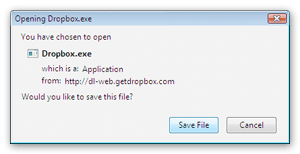
    1. Save the Dropbox application


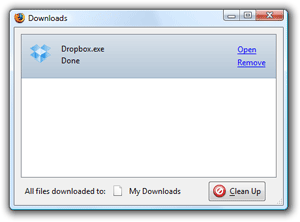
    2. Run the Dropbox Installer

    From your browser's Downloads window, click 'Open' to start the installer

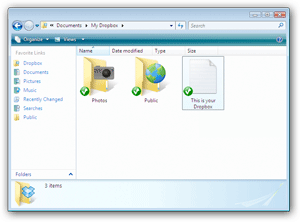
    3. After this, you should be good to go!

    Need any more info? Check out our tour or help sections.