I am using it now and then and it seems fast for sure. Am just giving it a whirl while it is beta version to
see what modifications they come up with.....
If you want to try it here's the link
Get it Now
Friday, September 17, 2010

Windows Media Player Plugin for Firefox- Latest Version
In order to play some video files in Firefox which are Windows related you must have this plugin installed
in the browser....
Download HERE
Close all browser windows so it can completely install.
in the browser....
Download HERE
Close all browser windows so it can completely install.
Lookout Mobile Security for your Smartphone
Another feature....it has a GPS feature....just in case you misplace your phone? How many have done that?
It will locate it within a few yards and send you an email and you can view the location of your lost phone also on a map....
pretty nifty program....and of course FREE....
Get it HERE
It will locate it within a few yards and send you an email and you can view the location of your lost phone also on a map....
pretty nifty program....and of course FREE....
Get it HERE
System Recovery Options for Windows 7
These two links will give you the ability to download the system recovery disks for Windows 7
They are torrent files so make sure you have a torrent downloader installed...such as Vuze.
Our friends at NeoSmart have provided these links on their webpage..... get 'em there by clicking on the highlighted link......
Windows 7 - 32 Bit (X86) Recovery ISO
Windows 7 - 64 Bit (X64) Recovery ISO
Burn these files with IMGBURN and then boot from startup to the CD.....
They are torrent files so make sure you have a torrent downloader installed...such as Vuze.
Our friends at NeoSmart have provided these links on their webpage..... get 'em there by clicking on the highlighted link......
Windows 7 - 32 Bit (X86) Recovery ISO
Windows 7 - 64 Bit (X64) Recovery ISO
Burn these files with IMGBURN and then boot from startup to the CD.....
How to start Wireless Zero Configuration using Windows Vista
For those of you who are having a time getting this to work in Vista here is the fix.....
To start Wireless Zero Configuration in Windows Vista you need to log in as an Administrator.
To start Wireless Zero Configuration in Windows Vista you need to log in as an Administrator.
- Click on Start and Control Panel
- Select Administrative Tools and then Services
- In the Services box scroll down the list of Services (Local) until you find the one labelled Wired AutoConfig and double click it.
- In the Wired AutoConfig Properties (Local Computer) box change the Startup type to Automatic
- Click on Start and once the service has started click on OK
- Now find the service labelled WLAN AutoConfig and double click it.
- In the WLAN AutoConfig Properties (Local Computer) box change the Startup type to Automatic
- Click on Start and once the service has started click on OK
- Go to File and Exit to close the Services window
Monday, September 13, 2010
Checkin' out the Ram
One simple way is this
Check the system settings to make sure the RAM is okay. (In Windows, press and hold the Windows button and press the Break/Pause button on the upper-right of the keyboard. The RAM amount should appear in the lower part of the menu.) The system settings will probably say less than the amount you installed, e.g., 0.99 G for 1 G of RAM.
Check the system settings to make sure the RAM is okay. (In Windows, press and hold the Windows button and press the Break/Pause button on the upper-right of the keyboard. The RAM amount should appear in the lower part of the menu.) The system settings will probably say less than the amount you installed, e.g., 0.99 G for 1 G of RAM.
Friday, September 10, 2010
Bynamite....see who knows what about you!
Control Which Advertisements You See in Chrome and Firefox
Find out how Internet advertisers see you, and take back control of your info.


They're Watching
The Internet is filled with advertisers that constantly collect information about you. What they know about you can get creepy, especially when they use that knowledge to bug you about things you don't like.*Available for Firefox and Chrome only
Take Control
You should always be in control over what advertisers know about you - you should be able to see it, change it, and delete it. If they won't give you control, they shouldn't use your information.Get Yours
When you have control over how advertisers view you, you hear about things you're actually interested in - rather than bad guesses based off of that thing you bought for your mom.Monday, September 6, 2010
Saturday, September 4, 2010
Printing with Peppermint Ice
Well, now here's a trick....since Peppermint Ice is set up for cloud printing can it be done? Of course, with a little savvy.....
here's how:
Go the "software manager" and install "cups" (type this in the "search" box)
this will install all the repositories (software) for the printer properties you need....
then go into the search bar again in the software manager and type "system-config-printer-gnome"
this is the GTK interface which allows "Printing" to show up in the "Preferences" tab on the start menu...
now click on "Printing" (once you get this whole mess installed)--click "add" to add the printer (which you will have plugged into the USB and turned on by now)
it will search for the printer driver...likely pull up your manufacturer..click on that...let it search some more...you will see the magic happen....gotta love Linux....the driver will appear and just install it...print a test page and off you go.....
and they said it could not be done........
here's how:
Go the "software manager" and install "cups" (type this in the "search" box)
this will install all the repositories (software) for the printer properties you need....
then go into the search bar again in the software manager and type "system-config-printer-gnome"
this is the GTK interface which allows "Printing" to show up in the "Preferences" tab on the start menu...
now click on "Printing" (once you get this whole mess installed)--click "add" to add the printer (which you will have plugged into the USB and turned on by now)
it will search for the printer driver...likely pull up your manufacturer..click on that...let it search some more...you will see the magic happen....gotta love Linux....the driver will appear and just install it...print a test page and off you go.....
and they said it could not be done........
Friday, September 3, 2010
"Sudo" the Linux Judo....read on....
Best Practices with sudo on Linux
Sep 2, 2010, 20 :04 UTC (0 Talkback[s]) (2863 reads)
(Other stories by Yvo Van Doorn)
Related Stories:
sudo apt-get install sl is Fun!(Jul 16, 2010)
Easy Redirection of Sudo Output(Jul 06, 2010)
Setting the record straight on sudo(Apr 06, 2010)
The Perils of Sudo With User Passwords(Feb 26, 2010)
How to add users to /etc/sudoers(Jan 07, 2010)
Microsoft Patents Sudo?!!(Nov 11, 2009)
By design security issues with linux default limited accounts (Ubuntu's sudo is not secure)(Jul 18, 2009)
What Happens When You Run "sudo rm -rf /" (video)(Apr 10, 2009)

Sep 2, 2010, 20 :04 UTC (0 Talkback[s]) (2863 reads)
(Other stories by Yvo Van Doorn)
"Many Linux users are familiar with sudo these days. Ubuntu has done a lot to popularize sudo by enforcing its use in place of encouraging users to use su to switch to the root account to install software and perform other administrative tasks. But there's much more to sudo that users and admins should know.Complete Story
"What many users aren't aware of is that sudo can be used to execute commands as any user, not just the root user. In the hands of a skilled admin, sudo can be used to set up fine-grained permissions to provide users with access to perform a few administrative tasks without giving away the keys to the kingdom. Let's look at some of the best practices for controlling system access with sudo while still allowing users to be productive."
Related Stories:
sudo apt-get install sl is Fun!(Jul 16, 2010)
Easy Redirection of Sudo Output(Jul 06, 2010)
Setting the record straight on sudo(Apr 06, 2010)
The Perils of Sudo With User Passwords(Feb 26, 2010)
How to add users to /etc/sudoers(Jan 07, 2010)
Microsoft Patents Sudo?!!(Nov 11, 2009)
By design security issues with linux default limited accounts (Ubuntu's sudo is not secure)(Jul 18, 2009)
What Happens When You Run "sudo rm -rf /" (video)(Apr 10, 2009)
Friday, August 27, 2010
Maverick Meerkat is coming October 10!
For you Ubuntu Fans...get ready.....the full production of Meerkat is on the way....
I am testing it right now and it is SUPER....
Here's the latest from OMG Ubuntu....
UI changes we saw in Ubuntu 10.10 Alpha 2 have begun to take hold in Alpha 3 particularly with the new look store front housing feature and ‘new’ apps.
 The new ‘tweet this app’ feature is also working, letting you share your love of an app with you entire social buddies via Gwibber.
You can browse all installations, removals and upgrades by day or search. Right-clicking on an entry gives quick access to removal options.
Either way it’s going to be there and, for fans of it, Alpha 3 brings a chorus of improvements including a working scrubber, working controls and the first steps towards playlist support.
Users can then click on the link to be taken directly to the track in the UbuntuOne Music Store.
 As we told you a little while back, Banshee is now the default media player for Ubuntu 10.10 NBE and Alpha 3 sees the netbook interface for it enabled by default.
Evolution Express and netbook-friendly versions of both contacts and calendar are also present.
The new ‘Unity’ interface is continuing to evolve at lively pace so the changes from Alpha 2 are considerable: new launchers, new applets, new apps.
Netbook bound Indicator-Network has received additions in both the settings window, mobile wizard and the passphrase dialogue
I am testing it right now and it is SUPER....
Here's the latest from OMG Ubuntu....
Software Centre
One of Ubuntu’s most defining additions is undoubtedly the Ubuntu Software Centre and Alpha 3 sees the maverick market place refine itself.UI changes we saw in Ubuntu 10.10 Alpha 2 have begun to take hold in Alpha 3 particularly with the new look store front housing feature and ‘new’ apps.
The new ‘tweet this app’ feature is also working, letting you share your love of an app with you entire social buddies via Gwibber. History
Whilst on the subject of the Software Centre be sure to pay heed to the much-improved ‘History’ side-pane entry.You can browse all installations, removals and upgrades by day or search. Right-clicking on an entry gives quick access to removal options.

Sound Applet
It’s one of the more controversial parts of the new Meerkat desktop - some people love it, some people loathe it.Either way it’s going to be there and, for fans of it, Alpha 3 brings a chorus of improvements including a working scrubber, working controls and the first steps towards playlist support.
Rhythmbox
Share your fave tracks with your friends directly from within Rhythmbox. Similar to the software centre’s tweet button you can tweet a link to your fave tracks via Rhythmbox.Users can then click on the link to be taken directly to the track in the UbuntuOne Music Store.
Shotwell replaces F-Spot
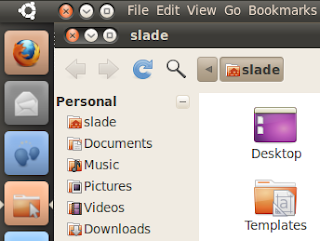
Shotwell replaced F-Spot as the default image management application.Time for a change
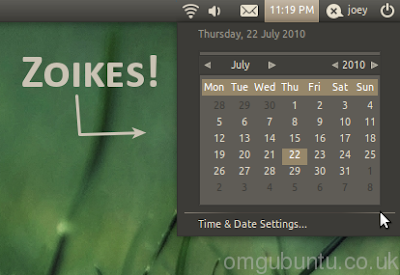
The new look indicator-clock has added a nice new calendar widget and preferences pane for easy configuration. Messaging Menu
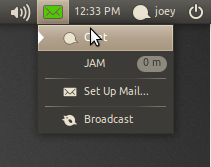
A neat left-aligned triangle overlay denotes running messages,and message counters are now rendered with a nice rounded background Netbook Edition
As we told you a little while back, Banshee is now the default media player for Ubuntu 10.10 NBE and Alpha 3 sees the netbook interface for it enabled by default. Evolution Express and netbook-friendly versions of both contacts and calendar are also present.
The new ‘Unity’ interface is continuing to evolve at lively pace so the changes from Alpha 2 are considerable: new launchers, new applets, new apps.
Netbook bound Indicator-Network has received additions in both the settings window, mobile wizard and the passphrase dialogue
Finally…
Much more has been updated, tweaked and added to Ubuntu 10.10 Alpha 3 than is possible to cover here. Whilst some changes take place on the surface many more take place underneath.
Subscribe to:
Posts (Atom)