Sunday, August 26, 2012

Want classic Windows Desktop on Windows 8? Here's how to boot to it....


The developer of Classic Shell has just released an update for the program that takes care of another annoyance that some Windows 8 users may experience. Windows 8 by default boots into the Metro startpage which may not be a issue for some, but for users who only work on the desktop, it may be just an added step before they can start to work. When Windows 8 users update to or install the new version of Classic Shell, they may notice that Metro is skipped automatically on startup.
This works very similar to the manual workaround that we have posted at the beginning of the month. You do see the Metro screen for a second or two before the switch is automatically made to the desktop.
classic shell skip metro
You can disable the option in the Classic Shell preferences if you do not want to skip Metro on start of Windows 8. Please note that Metro is still fully enabled, which means that you can still open the startpage from the Charms menu. The Windows-key on the other hand opens the start menu and does not switch to the Metro interface anymore.
Depending on how Classic Shell is configured on the system, the program may be updated automatically on next start up, or may require you to download the new version to install it manually on the system. (via Techdows)

Wednesday, August 15, 2012

Install Win7, Vista, and Xp from a usb stick....here's how....

1. First of all just format your pendrive using normal format tool. 


2. Download WinSetupFromUSB-1-0-beta-7 from the following link 

Download


3. Open and run WinSetupFromUSB_1-0-beta-7.exe


After running it you will see screen like below


4. As shown in above image you can see your USB pen drive detected.

After that give path of your windows 7 cd, windows XP cd and other iso file like shown in image below.

You can mount your iso file of windows xp/7/vista in any virtual drive and then use it too.


Now click on ‘GO’.

You can see the process going on. This process will take a few minutes.

After completing the process you can see the message like below.


Click on ‘OK’

That’s IT!!

You are done.

You can now install windows 7 or XP or VISTA from USB port.

RFID--it's here--check out your credit cards!

Tuesday, August 14, 2012

Keyboard Jumping on your laptop? Here's the answer......

Many people are having this problem.....the touchpad is so sensitive that just letting your fingers pass over it causes jumping around of the cursor and keyboard strokes....

well, to fix....get an external USB mouse and plug that it....

then run "touchpad pal" which will disable the touchpad and give you the ability to get back to normal speed typing....

here's the link for running on Windows 7 ....
TOUCHPAD PAL

Sunday, August 12, 2012

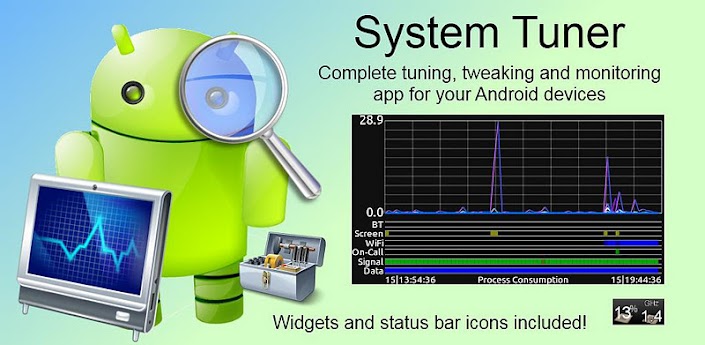
Tweak Your Smartphone to get the most out of it...here's how


The most complete Android system suite: monitor and record all activities, backup and restore *any* applications, extended task killer, CPU SD and memory controls, logcat reader, terminal emulator, widgets and notifications, all in one highly optimized app!
By far the lowest consumption monitoring app! Check web-site for app consumption!
You can add shortcuts to your home screen for any of the below features/screens!
Task Manager: (can be set as main UI, see options)
- Filter user/system/kernel processes and exclusion list
- Shows cpu load/frequency, memory/internal/sd usage
- Sort processes by cpu times, start time, memory or by name
- Kill non manually excluded apps automatically
- Shows detailed information about running apps and processes
- Open app system settings
- Read app logcat
- Manually kill running apps
CPU Manager (rooted phones):
- Tweak CPU governor + frequencies during screen-off, on-call
- Tweak CPU voltage (when available on custom Kernel)
- Set CPU settings on boot
- Uses OC/deamon when available and can disable it
Extended Task Killer
- Kill non-excluded apps automatically or manually
- Kill apps during screen-on, screen-off or when widget refreshes
- Manually exclude or include apps
- All system apps are excluded by default
- Manually kill kernel processes (root)
- Display memory and SD details (RAM & internal)
Application Manager without root:
- Backup/restore/uninstall user apps, only APKs are backed-up
- Launch and read app logcat
Application Manager with root:
- Freeze/unfreeze apps
- Remove app from boot
- Backup/restore/uninstall any apps and settings, including system apps
- Launch and read app logcat
- Display application data and cache usage
- Sort application by name, data usage or cache usage
- Move any apps to/from system/user/SD space
- Clear caches or dalvik cache (must reboot after)
Activity Recorder:
- Record (optionally at boot) activities in the background
- Record all apps or all processes
- Record phone states (screen, wifi, bluetooth, gps, mobile data, signal)
- Import Battery Monitor Widget Pro data for detailed analysis!
- Allows analyzing past recordings without limits
Logcat Reader:
- Display log(cat) for all/one process
- Filter logcat by message levels
- Filter logcat based on user-defined text
- Save logcat to file
- Clear existing logcat (root)
Terminal Emulator:
- Keeps history of previously used Linux commands
- Save output to file
- Run pre-existing scripts
- Run commands as Super User (root)
System Tweaker (root):
- Tweak SD cache size to boost performance
- Tweak IO scheduler to boost performance
- App booster on boot (APK alignement + DB cleanup)
- Tweak Android auto-kill memory settings
- Uses Linux init.d script when available
Notifications:
- Show cpu load, frequency, governor, free/used memory (flash/internal/sd)
- Show most information (cpu, memory, internal, SD)
- Optionally shows a configurable graphic time-line
- Provided as external packages, many available for white/black notification backgrounds
Widget:
- Many different widget backgrounds: HTC Sense 2 or 3, Google, Glassy half, ICS or fully transparent.
- Show cpu load, frequency, governor, free/used memory (flash/internal/sd), process count using text or 2 side levels.
- Starts 2 different actions by clicking on the icon or label, including:
. Start/stop recording process activity
. Kill all non-excluded processes
. Refresh
. Start any app activities
. Open settings

Available at Google Play Store

Tuesday, July 24, 2012

Viber-Get it for free text, calls etc on your smartphone-Iphone or Android

Viber is an application for iPhone®, Android™, Windows Phone and Blackberry phones that lets you make free phone calls to anyone that also has the application installed.

When you use Viber, calls and text messages to any other Viber user are free, and the sound quality is much better than a regular call. You can call or text any Viber user, anywhere in the world, for free. All Viber features are 100% FREE and do not require any additional "in application" purchase.

Download Viber now:


Sunday, July 15, 2012

Recover Excel files efficiently

Recovery Toolbox for Excel

A tool for recovering damaged Microsoft Excel (*.xls, *,xlt, *.xlsx, xlsm, *.xltm, *.xltx, *.xlam) files

Recovery Toolbox for Excel (download) is a special tool for quick and easy recovery of damaged Microsoft Excel files. It can help the users to avoid the loss of important data most often processed using spreadsheets, such as statistical, economic, science information, etc. Recovery Toolbox for Excel uses the following method. First the program scans the specified Microsoft Excel worksheet and gets all available information from it. Some data can be lost if the file is seriously damaged, but if the program can recover information, it will recover and show it. If the user needs the information recovered from the damaged folder, a single mouse click is enough to export the data to Microsoft Excel and continue working with it. What's quite important, the source file remains unchanged during the work of the program, which only reads information from it. After that, you can edit the information and/or save it to another worksheet.

HotSpot Shield to access sites US sites when outside the country.

Hotspot Shield protects you online and lets you access the information you need. Access blocked services like Facebook, YouTube, Twitter, and Skype in countries or venues where the Internet is censored. Keep hackers from stealing personal information while users are browsing the Internet in public locations like Starbucks. Hotspot Shield also protects against 3.5 million malware threats, including infected websites, phishing and spam sites. Browse the Internet privately and anonymously. Hotspot Shield does all of this without collecting any information on your personal identity.
What's new in this version: Version 2.61 may include unspecified updates, enhancements, or bug fixes.

Read more: Hotspot Shield

Thursday, June 28, 2012

Ice Cream Sandwich melts quick...here's some tips to save your battery!

Ice Cream Sandwitch PART (Android 4.0.x) :


Settings > Wi-Fi > Advanced > Network notification : [UNTICK]

Settings > Wi-Fi > Advanced > Keep Wi-Fi on during sleep : "Always"

Settings > Data usage > Set mobile data limit : [UNTICK]

Settings > Call > Call rejection > Auto reject mode "OFF"

Settings > Sound > Vibration intensity > Set everything to Minimum

Settings > Sound > Everything in "System" part [UNTICKED]

Settings > Display > Weather > [UNTICK]

Settings > Display > Brightness > Automatic brightness > Set it to Minimum

Settings > Display > Screen timeout > "15s"

Settings > Display > Touch key light duration > "Always OFF"

Settings > Display > Auto adjust screen power > [TICK]

Settings > Location services > Everything [UNTICKED]

Settings > Back up and reset > Everything [UNTICKED]

Settings > Date and time > Automatic date and time > [UNTICK]

Settings > Date and time > Automatic time zone > [UNTICK]

Settings > Motion > Motion activation > [UNTICK]

Settings > Developer options > Windows animation scale > "Animation is OFF"

Settings > Developer options > Transition animation scale > "Animation is OFF"

Settings > About phone > Software update > Everything [UNTICKED]

Friday, June 22, 2012

Zorin OS-The next Linux with changeable interface to Win7-XP etc!

Touchwiz Dock Icon Options...how to change them....

If you want to change your DOCK icons from the standard ones here's the easy fix.

from home screen, hit applications dock icon (the icon with the circle and dots in it)-
- menu - view type - customizable grid - menu - edit - drag onto dock and it will replace whatever - tap the applications dock again  (the icon with the circle and dots in it)